
@woonivers/react-native-document-scanner



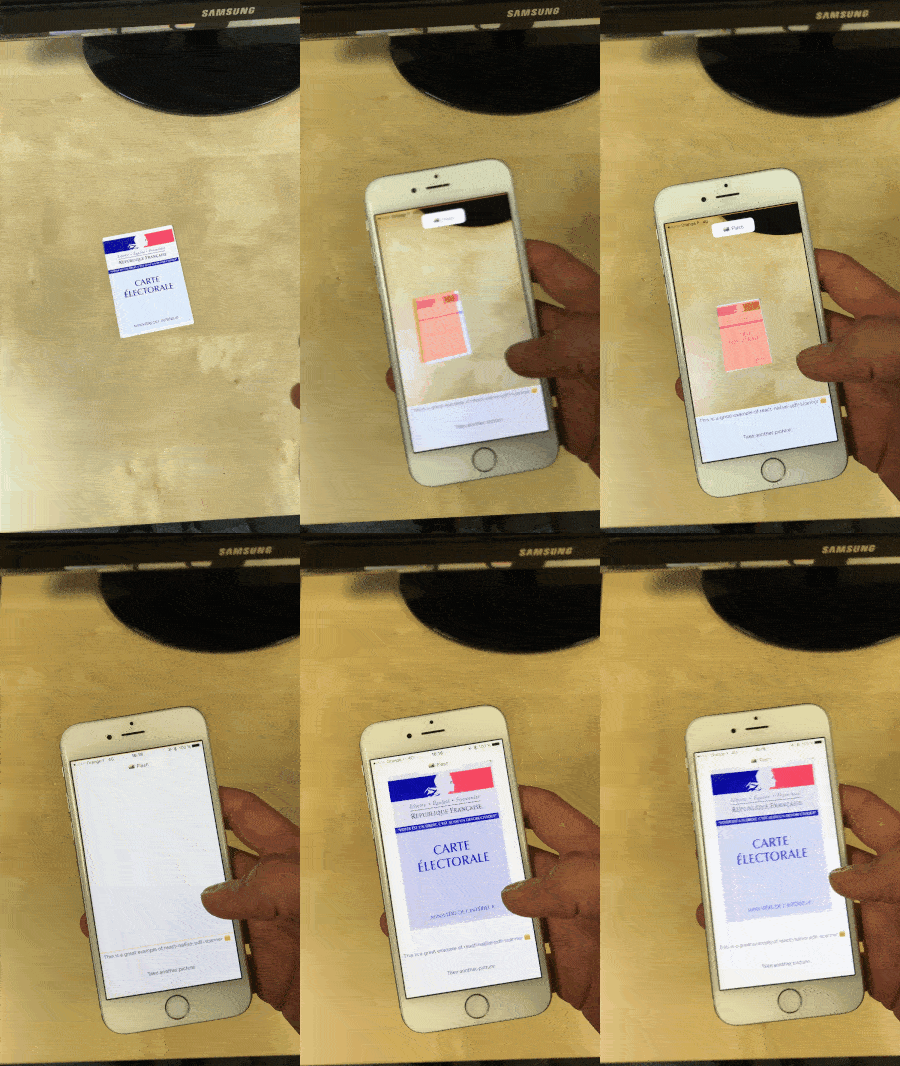
Live document detection library. Returns either a URI of the captured image, allowing you to easily store it or use it as you wish!
- Live detection
- Perspective correction and crop of the image
- Flash
Getting started
Version >=2.0.0 is thinking to work with React Native >= 0.60
Use version
1.6.2if you are using React Native 0.59
Install the library using either yarn:
yarn add @woonivers/react-native-document-scanner`
or npm:
npm install @woonivers/react-native-document-scanner --save
Remember, this library uses your device's camera, it cannot run on a simulator and you must request camera permission by your own.
iOS Only
CocoaPods on iOS needs this extra step:
cd ios && pod install && cd ..
Android Only
If you do not have it already in your project, you must link openCV in your settings.gradle file
include ':openCVLibrary310'
project(':openCVLibrary310').projectDir = new File(rootProject.projectDir,'../node_modules/@woonivers/react-native-document-scanner/android/openCVLibrary310')
In android/app/src/main/AndroidManifest.xml
Change manifest header to avoid "Manifest merger error". After you add xmlns:tools="http://schemas.android.com/tools" should look like this:
<manifest xmlns:android="http://schemas.android.com/apk/res/android" package="com.<yourAppName>" xmlns:tools="http://schemas.android.com/tools">
Add tools:replace="android:allowBackup" in <application tag. It should look like this:
<application tools:replace="android:allowBackup" android:name=".MainApplication" android:label="@string/app_name" android:icon="@mipmap/ic_launcher" android:allowBackup="false" android:theme="@style/AppTheme">
Add Camera permissions request:
<uses-permission android:name="android.permission.CAMERA" />
Usage
import React, { Component, useRef } from "react"
import { View, Image } from "react-native"

import DocumentScanner from "@woonivers/react-native-document-scanner"

function YourComponent(props) {
  return (
    <View>
      <DocumentScanner
        style={styles.scanner}
        onPictureTaken={handleOnPictureTaken}
        overlayColor="rgba(255,130,0, 0.7)"
        enableTorch={false}
        quality={0.5}
        detectionCountBeforeCapture={5}
        detectionRefreshRateInMS={50}
      />
    </View>
  )
}
Full example in example folder.
Properties
| Prop | Platform | Default | Type | Description |
|---|---|---|---|---|
| overlayColor | Both | none |
string |
Color of the detected rectangle : rgba recommended |
| detectionCountBeforeCapture | Both | 5 |
integer |
Number of correct rectangle to detect before capture |
| detectionRefreshRateInMS | iOS | 50 |
integer |
Time between two rectangle detection attempt |
| enableTorch | Both | false |
bool |
Allows to active or deactivate flash during document detection |
| useFrontCam | iOS | false |
bool |
Allows you to switch between front and back camera |
| brightness | iOS | 0 |
float |
Increase or decrease camera brightness. Normal as default. |
| saturation | iOS | 1 |
float |
Increase or decrease camera saturation. Set 0 for black & white |
| contrast | iOS | 1 |
float |
Increase or decrease camera contrast. Normal as default |
| quality | iOS | 0.8 |
float |
Image compression. Reduces both image size and quality |
| useBase64 | iOS | false |
bool |
If base64 representation should be passed instead of image uri's |
| saveInAppDocument | iOS | false |
bool |
If should save in app document in case of not using base 64 |
| captureMultiple | iOS | false |
bool |
Keeps the scanner on after a successful capture |
| saveOnDevice | Android | false |
bool |
Save the image in the device storage (Need storage permissions) |
Manual capture
- First create a mutable ref object:
const documentScannerElement = useRef(null)
- Pass a ref object to your component:
<DocumentScanner ref={documentScannerElement} />
- Then call:
documentScannerElement.current.capture()
Each rectangle detection (iOS only) -Non tested-
| Props | Params | Type | Description |
|---|---|---|---|
| onRectangleDetect | { stableCounter, lastDetectionType } |
object |
See below |
The returned object includes the following keys :
stableCounter
Number of correctly formated rectangle found (this number triggers capture once it goes above detectionCountBeforeCapture)
lastDetectionType
Enum (0, 1 or 2) corresponding to the type of rectangle found
- Correctly formated rectangle
- Wrong perspective, bad angle
- Too far
Returned image
| Prop | Params | Type | Description |
|---|---|---|---|
| onPictureTaken | data |
object |
Returns the captured image in an object { croppedImage: ('URI or BASE64 string'), initialImage: 'URI or BASE64 string', rectangleCoordinates[only iOS]: 'object of coordinates' } |
Save in app document -Non tested-
If you want to use saveInAppDocument options, then don't forget to add those raws in .plist :
<key>LSSupportsOpeningDocumentsInPlace</key>
<true/>


